
See what's used. Set the rules. Keep the record.
One browser extension and one dashboard, for the AI tools your people use in the browser and for Microsoft 365 Copilot.
The one-minute overview
See, set the rules and prove, on the real product.
Which tools, how often, and for what
The extension records AI use in the browser. The dashboard turns it into a picture of the business.
- Prompts on ChatGPT, Claude, Gemini and Perplexity
- Visits to over 150 other AI tools
- Microsoft 365 Copilot activity from your audit log, in the same view
- Sensitive data found, by kind: personal information, financial, credentials and more
- When it happens: a heatmap of use by hour and day
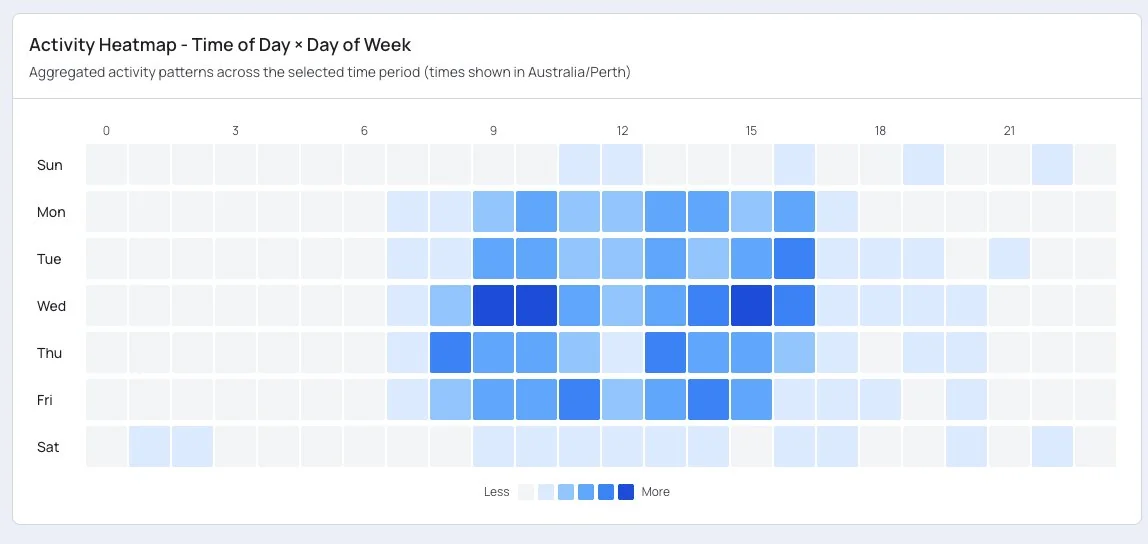
Example: when AI gets used across the week
What AI is doing for the business
Three reports that count use for the organisation as a whole. People are counted, never named.
AI at Work
How many people use AI, how much, and what they ask it to do: explain, draft, edit, analyse, review, summarise. It comes with findings and suggested actions.
Trends
How the mix of work and tools moves by week, month and quarter.
Workflows
The multi-step tasks and single requests people repeat. Mark the ones worth sharing with the rest of the team.
Watch first. Coach when you need to.
Vireo Sentinel runs in one of two modes. You can switch at any time, for the whole organisation or for one person.
| Insight | Intervention | |
|---|---|---|
| What your people see | Nothing. They work as normal | A review box when a prompt contains sensitive data |
| What's recorded | Every prompt, redacted | Every prompt, redacted, plus what the person chose and why |
| Use it to | Understand how AI is being used | Teach people what shouldn't go into AI |
How most businesses would run it
Insight, to understand
Every organisation starts here. Nobody is interrupted while you learn which tools are in use and where the risk is.
Intervention, to build the habit
Switch on prompt review for a few months. People see what counts as sensitive at the moment they're about to send it.
Back to Insight
Once the habit has stuck, step back. You keep the full record without the interruptions.
New starters on Intervention
Keep the organisation on Insight and set individual people to Intervention, so anyone new gets the same coaching.
Three controls, turned on when you're ready
Add them one at a time. None of them needs the others.
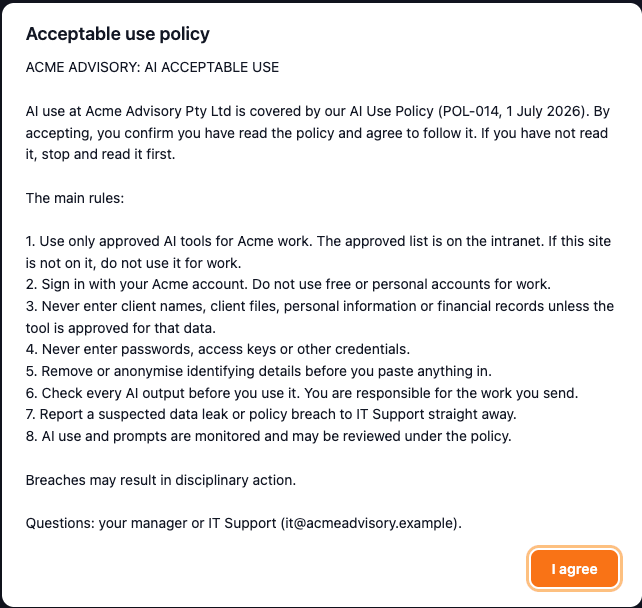
1. The policy prompt
Paste in your acceptable use policy and choose which AI sites show it. People see it when they open one of those sites and agree before they can use it.
- Ask once, or on each site
- Include search engines that answer with AI, such as Google, if you want them covered
- Change the wording and everyone is asked again
- A record of who accepted, on which site, and which version
2. A second look at risky prompts
In Intervention mode, a prompt that contains sensitive data is held in a review box before it's sent. The person sees what was found and chooses what to do.
- Edit the prompt in place
- Redact: preview the cleaned version, then send that
- Cancel
- Send anyway, with a reason that goes on the record
The check uses over 90 patterns and keyword lists and runs in the browser. People are also warned before they attach a file, and its name, type and size go on the record. The contents aren't scanned.
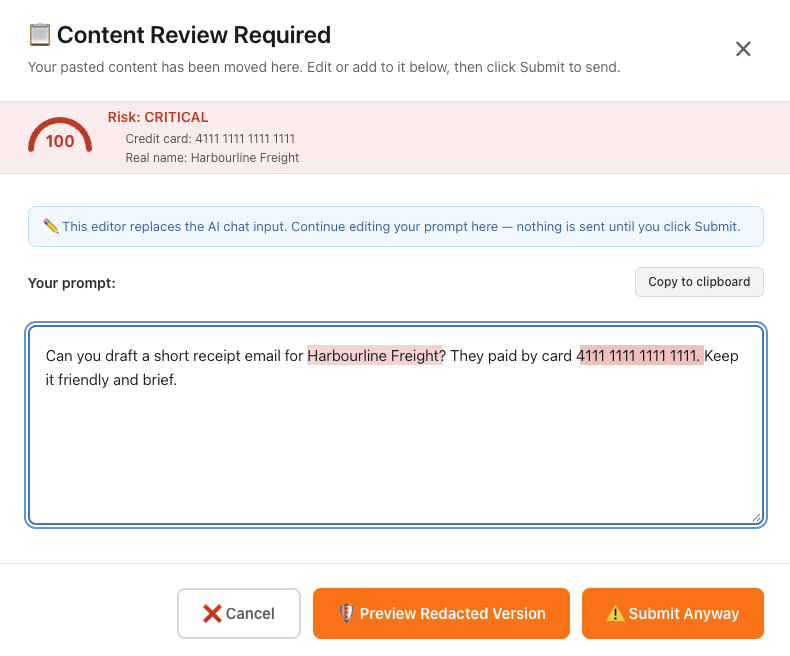
Example prompt with a test card number
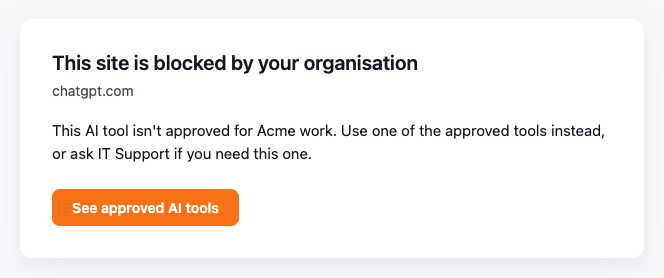
3. Site blocking
Pick the AI sites you haven't approved. People who open one see your message and a link to the tools they can use.
Blocking works in browsers with the extension installed. Desktop apps and phones need your network controls.
Your people can see their own record
Each person can open the extension and see what it has recorded about them. Watch the 50-second how-to.
Today, in one click
Click the Vireo icon in the browser. It shows the mode they're in, which AI tools are covered, and today's count of prompts, reviews and redactions.
Their own page
One more click opens their own activity over 7, 30 or 90 days: prompts and reviews, when they use AI, and which tools and kinds of work.
Their devices
The same page lists the browsers they're signed in on, up to five on a licence.
The record you can hand over
Reports build from the same data, so there's nothing to compile at audit time. Watch the 43-second how-to.
- An AI governance report in six sections, as a PDF
- Sections cite the ISO/IEC 42001 clauses and Australian Privacy Principles they relate to
- Review decisions and reasons, policy acceptances and site blocks, all dated
- An access history showing which administrator could read prompt text, and when
- Raw data export as JSON, CSV or Markdown
The six sections
- AI systems inventory
- Risk assessment and treatment
- Control effectiveness evidence
- Residual risk assessment
- Continuous improvement
- APP 1.7 automated-decision facts
Privacy policies change on 10 December 2026
From that date, organisations covered by the Privacy Act have to set out in their privacy policy how they use automated decisions that could significantly affect someone.
Section 6 of the governance report quotes the law, then lists the AI tools your people used and the kinds of work they used them for. You decide what applies. Vireo Sentinel gives you the record to decide from.
Know what's in use by the end of the week
Start the trial, install the extension, and see your first report.
14-day free trial. A card starts the trial, and you're not charged if you cancel before it ends.